OVERVIEW
WHAT IS ONEDRIVE?
OneDrive is Drexel's only approved solution for security- and privacy-validated cloud storage, file creation, and file sharing. In OneDrive, faculty and professional staff can store, sync, and share any type of file with colleagues, or even with students through their courses.
OneDrive is a dynamic application, which means it is an application that is continually in development. Screenshots and video recordings on this site may be slightly different than what you may see on your computer due to these constant changes.
Description & Features
- Approved for storage and sharing of sensitive data
- Dynamic software updates
- File syncing with the Sync Client for PC and Mac
PREPARING TO USE ONEDRIVE
Prior to using OneDrive to manage your files, Drexel IT recommends evaluating your current file structure and identifying which files you would like to move onto OneDrive. We do not recommend moving your entire Documents folder from your local computer.
Here are a few preparation suggestions:
HOW TO ACCESS ONEDRIVE
OneDrive on the Web
The web version of OneDrive is the primary way to access OneDrive for Business. Within the web client, you can share files with other users, and even edit Microsoft documents without having Office installed! We've compiled a few tips and how-tos to help get you started:
Tips and How-tos
Activate Your OneDrive Account
If you have not already done so, you will need to sign into Microsoft 365 at portal.office.com and select OneDrive. This will properly provision your OneDrive space.
Create a Folder that is Not Synced
Most computers, though, do not have enough storage space to match OneDrive's capacity limits, which could easily pose a problem to those who sync files between their computer and OneDrive.
To help combat this, Drexel IT recommends creating a folder within your OneDrive that is not synced between the cloud and your local computer that is solely used for archival purposes. This means (when set up correctly), the folder will not sync with any computers that may have the OneDrive for Business sync client installed. We recommend large files, and any files that do not necessarily need to be stored on your local computer for quick access, be organized within this folder.
Once this folder has been created (or, if you have identified folders that you do not wish to sync), you will need to change your sync settings within your OneDrive client. Please review the Desktop Sync Client section for installation instructions.
Upload Files
You can upload files directly from your computer to OneDrive via the Web Browser. Either click the "Upload" button at the top of the page, or drag the file(s) right into your web browser window, and OneDrive will do the rest. Please note, at this time only Google Chrome enables you to drag-and-drop folders that contain content. If you use another browser, create a folder or folders in OneDrive and then you can drag-and-drop your files easily.
Share Files
If you need assistance with setting up OneDrive for Business, please contact Drexel IT.
Desktop Sync Client
The Desktop Sync client allows for files saved on OneDrive also to be available on a local computer. This application will constantly run on your computer to keep your OneDrive updated in real-time.
Remember, if you sync your OneDrive to your local computer, you must have the equivalent space available on your local hard drive to accommodate the local copies of your files. The sync client will allow you to pick and choose which folders or files are synced between your computer and the cloud.
Drexel IT will only support sync clients installed on Drexel-owned computers that are downloaded via the proper methods below:
INSTALLATION INSTRUCTIONS FOR PC (WINDOWS)
Overview
To get the most out of Drexel OneDrive, it's best to use the OneDrive for Business sync client. It is available for PCs running Windows 7, 8.1, and 10 through Software Center (see below) for Drexel-Owned Computers only. With the OneDrive for Business sync client, all of your files residing within your Drexel OneDrive folder will be automatically uploaded to the cloud. As you make changes to the files on your local computer, the changes will be synced to the cloud right away!
While the OneDrive for Business sync client can also be downloaded from the Office 365 website, Drexel has a special set up that ensures full compatibility with our systems and with Microsoft. Thus, Drexel IT will only support Sync Clients that are set up through the process below. College of Medicine, College of Engineering, and LeBow College of Business users should check with their respective IT Departments to see if they are eligible to use the sync client in their current configurations.
If you are using Office 2016, please contact the Drexel IT Help Desk prior to installing OneDrive for Business as an additional pre-requisite is required for installation.
To Install
Activate Your OneDrive Account
If you have not already done so, you will need to sign into Office 365 at portal.office.com and click on OneDrive. This will properly provision your Drexel OneDrive space.
Locate the Software Center App
 |
The software is only available to Drexel-owned and managed Windows computers through Software Center. To verify that you have the Software Center Application installed, navigate to Start --> All Programs/All Apps --> Microsoft System Center. You should see an application within that folder called Software Center.
Some College of Medicine, College of Engineering, and LeBow College of Business users are under their respective school's configuration and may not have the Software Center application installed. Those users will not be eligible to use the sync client at this time.
|
Download the Client (Drexel-Owned Machines Only)
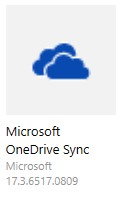 |
Once you have confirmed that you have the System Center client installed on your computer, open the Software Center application. Within the list of applications available to download, you will see Microsoft OneDrive Sync Client. Select the application, and choose Install. The software will then download and automatically install. Windows 10 users may already have the client installed, and can simply skip to the next step. |
Set Up the OneDrive Sync Client
In order for your OneDrive to sync between your computer and OneDrive itself, you will then need to configure the OneDrive client on your computer. To start, open the application.

You will be prompted to sign into OneDrive using your Drexel email address. The system will recognize you are an Education user, and then prompt you to enter your password. When entering your password, make sure the Drexel logo appears at the top of the screen.

Once OneDrive confirms that you are an authorized user, you will then be prompted to choose a location to place your OneDrive sync folder on your local computer. For most users, the default user folder is sufficient.

Finally, you'll be asked to choose which folders to sync. You can choose to sync everything, or pick and choose folders to sync.

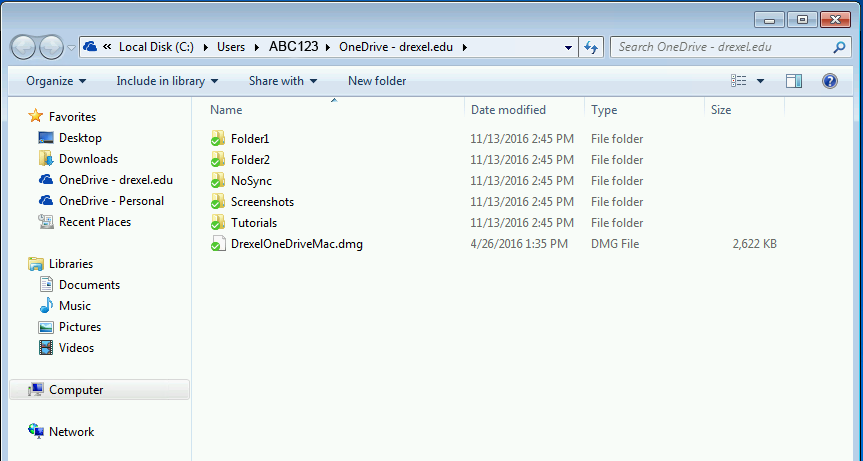
That's it! You'll then see a shortcut for OneDrive labeled OneDrive -- drexel.edu. This is your local copy of your OneDrive that will automatically sync to the cloud.
Adjusting Settings
Changing Folders that Sync
To change which folders sync from the cloud to your local computer, start by right-clicking the blue cloud icon in the system tray, and choosing Settings.
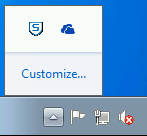
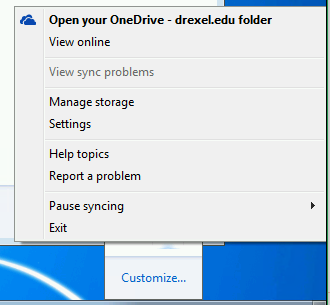
Next, click on the Account tab at the top. Then, under 1 Location is syncing, select Choose Folders under OneDrive - drexel.edu.

Check or Uncheck the box corresponding with the folder(s) you wish to sync/not-sync, and then click OK. Then, click OK again to close out of the Settings window.
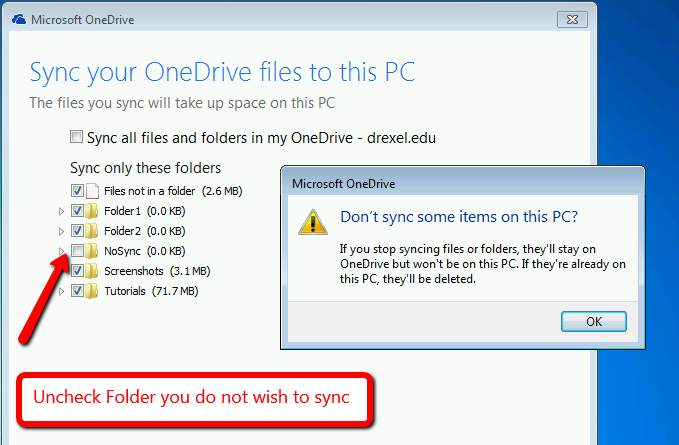
Once the changes have been applied, the new folders will begin to sync, or the old folders that you no longer wish to sync will be removed.
INSTALLATION INSTRUCTIONS FOR MAC (MACOS)
Overview
OneDrive for Business is available for Macs running OS X El Capitan (10.11) and Mac OS Sierra (10.12) via the Mac Self Service application (see below). With the OneDrive for Business sync client, all of your files residing within your OneDrive folder will be automatically uploaded to the cloud. As you make changes to the files on your local computer, the changes will be synced to the cloud right away!
While the OneDrive sync client app can also be downloaded from the Mac App Store, Drexel has a special set up that ensures full compatibility with our systems and with Microsoft. Thus, Drexel IT will only support OneDrive Sync Clients on Macs that are set up through the process below, through Mac Self Service.
To Install
Activate Your OneDrive Account
If you have not already done so, you will need to sign into Office 365 at portal.office.com and click on OneDrive. This will properly provision your OneDrive space.
Ensure you have Self Service Installed
 |
Self Service must already be installed on your computer in order to properly download OneDrive for Business. Check your Dashboard for the Application, or search in your Spotlight for "Self Service". If you do not have the Self Service application on your Mac, and your Mac is Drexel-Owned, you must first install Self Service by enrolling your Mac. Click the link below for instructions.
ENROLL YOUR MAC
This installer should only be run on Drexel-owned and managed computers.
|
Download OneDrive from Self Service
 |
On the Self Service homepage, OneDrive will be one of the featured applications. Click the "Install" button underneath the OneDrive icon. The application will download and install automatically.
If you do not see the OneDrive app available in Self Service, try restarting your computer first and then re-opening the Self Service application. This is will likely be needed if you had just self enrolled prior to this step. If after a restart it is not there, it is possible that it was already downloaded and installed to your computer. Otherwise, contact the Help Desk for assistance.
|
Set Up the OneDrive Sync Client
Once the app has been installed via Self Service, launch the application. You will first be prompted to enter your Drexel email address (abc123 format).
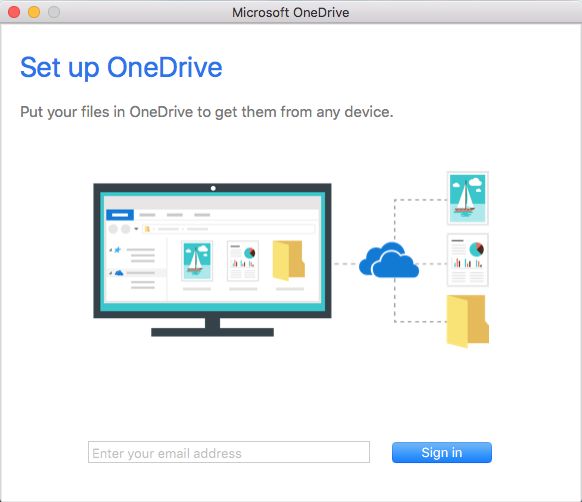
Next, you will be asked to choose between a Personal or a Work/School Account. Select the Work/School Account option.

Then, you will be prompted to enter your Drexel password. Make sure the Drexel logo appears at the top of the login window!
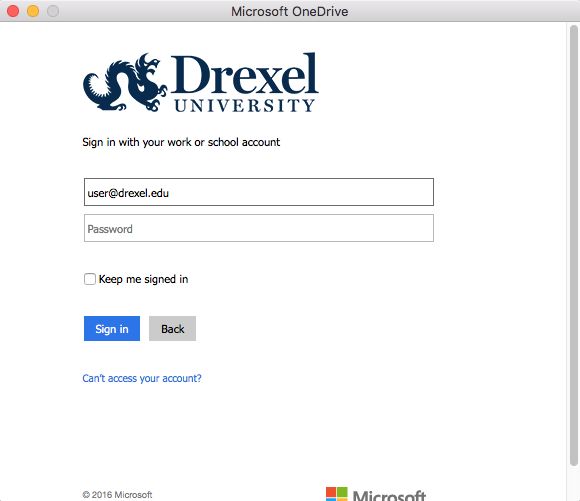
Once signed in, you'll be asked to choose a location to place your OneDrive sync folder on your local computer. For most users, the default user folder is sufficient.

Finally, you'll be asked to choose which folders to sync. You can choose to sync everything, or pick and choose folders to sync.

Once the folders have been selected, a sync will begin with OneDrive. Make sure to keep the box checked to open at login so that your OneDrive is kept up to date on your local computer!

Adjusting Settings
Changing Folders that Sync
To change which folders sync from the cloud to your local computer, start by selecting the cloud icon in the top toolbar, and choosing Preferences.

Next, click on the Account tab at the top. Then, under Locations, select Choose Folders under OneDrive - drexel.edu. Check or Uncheck the box cooresponding with the folder(s) you wish to sync/not-sync, and then click OK. Then, close out of the Settings window.

Once the changes have been applied, the new folders will begin to sync, or the old folders that you no longer wish to sync will be removed.
OneDrive on the Web
Prior to using OneDrive to manage your files, Drexel IT recommends evaluating your current file structure and identifying which files you would like to move onto OneDrive. We do not recommend moving your entire Documents folder from your local computer.
| Special Note: File Syncing |
|
Where Did All My Hard Drive Space Go?
When you use the OneDrive sync client, your synced files are stored in two places: in the cloud, and on your local machine in the "OneDrive - drexel.edu" folder. Files put in to the local OneDrive folder are copied up to the cloud for storage in your OneDrive account (accessible via the web client). Files in the local folder count toward your remaining hard drive space, while folders in the cloud count toward your OneDrive account's storage allotment.
If you copied a file from another part of your hard drive into the "OneDrive - drexel.edu" folder, then you've really got three copies taking up space. It's easy to see how space on your local hard drive can diminish at an alarming rate when files are copied (instead of moved) to new folders, and files from the OneDrive web client are synced back to your computer. This is why an important step in using OneDrive is to plan your folder/file structure early and track where files actually live.
|